How it works
How the Keeliva check works.
From download to report: what happens, what the scan looks at, what it never does, and how the grade is set.
IT professional or service provider? Skip to the technical details.
Step 1
Before the scan
Three screens, no technical questions.
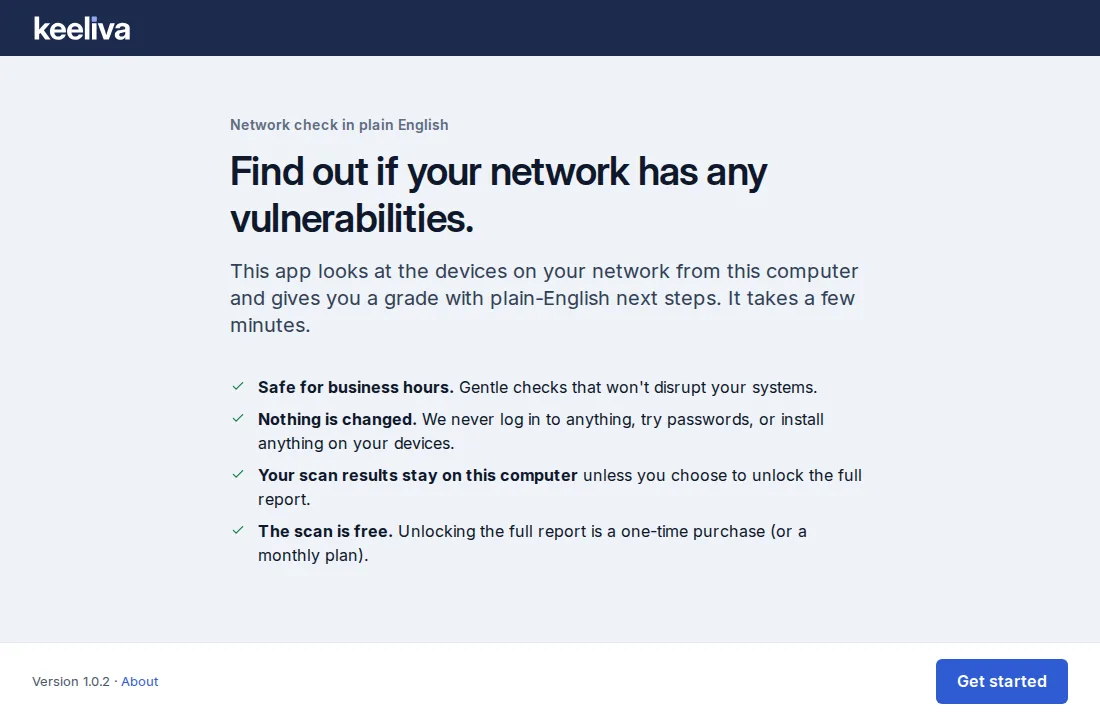
- Install and open. The installer sets Keeliva up for your Windows user only, so no administrator password is needed. It adds a Start menu entry and an uninstaller.
- Choose whether to use AI. There is no default: you say yes or no. The screen explains in plain words what AI adds and exactly what would be sent to our server if you later unlock the report.
- Confirm your network. Keeliva shows the network this computer is connected to and explains any connection it will skip. Nothing on your network is contacted until you choose “Yes, start the scan”. Only scan a network you are responsible for.
Step 2
During the scan
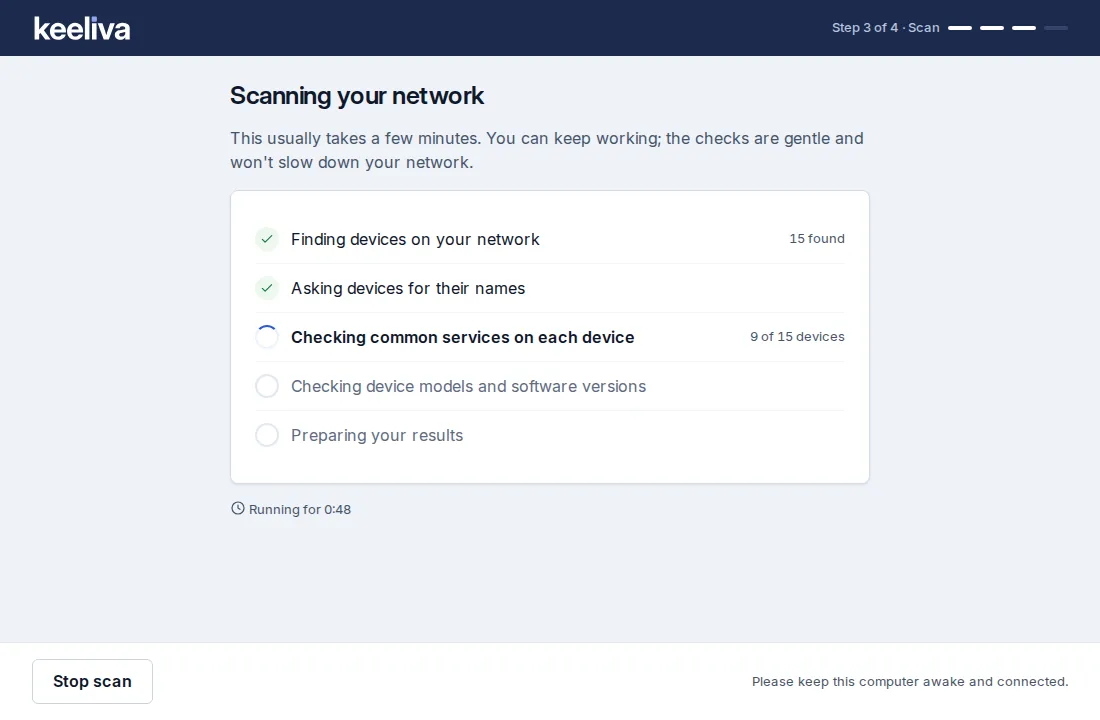
It usually takes a few minutes. You can keep working.
- Finds the devices on your network the way your own computer does, by calling each address once and reading the address table Windows already keeps.
- Asks devices for their names. Printers, phones and computers have names of their own on the network; Keeliva asks for those rather than guessing.
- Checks common services on each device. Ordinary connection attempts to a short list of well-known services (file sharing, remote control, printing, web pages, and so on), one at a time and rate-limited. The same kind of connection any computer makes when it opens a shared folder or a web page.
- Notes device models and software versions from the short identification text a device sends when contacted, and from public description pages that printers and similar devices publish on the network. The Windows version of the computer running the scan is read locally.
What the scan never does
Small organizations often have older equipment, such as imaging systems, phone systems and label printers, that aggressive tools can upset. Keeliva is built to be safe during business hours.
- Never logs in to anything or tries passwords.
- Never tries to exploit or break into a device.
- Never installs anything on, or changes any setting of, your devices.
- Never sends anything to printers' raw-print ports (no mystery pages).
- Never floods a device: one connection at a time, with spacing between them.
- Never installs a network driver on your computer; it uses only the ordinary connections Windows already allows.
Step 3
Your free preview
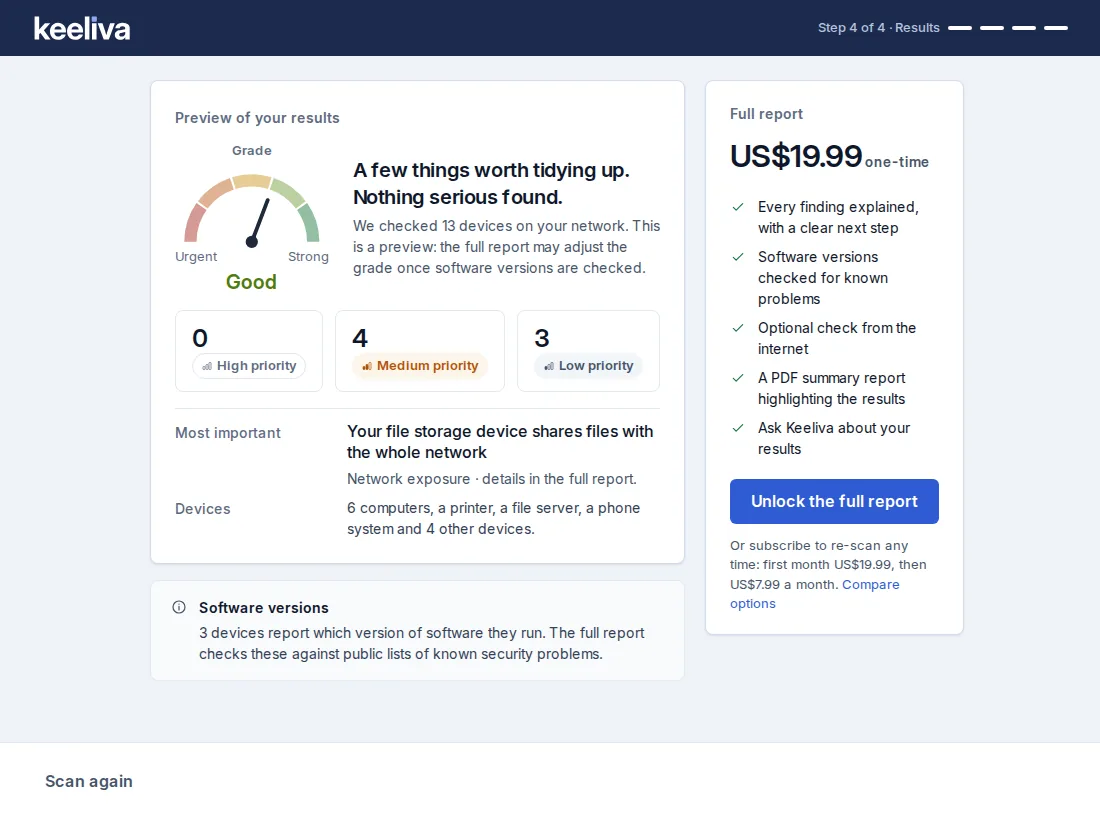
The scan ends with a grade and a count, at no cost.
- Your grade, as a word: Strong, Good, Needs Attention, Serious Issues or Urgent.
- How many items were found, by priority, the title of the most important one (never which device or how to fix it), and what kinds of devices were seen.
- An honest note about software versions. Devices that report a version are counted as “possible issues”; the full report checks them against public lists of known security problems before saying anything.
Step 4, optional
Unlocking the full report
If you want every finding explained, you unlock from the preview. Four short steps, in this order.
Choose a plan
One report for US$19.99, or the monthly plan (US$19.99 the first month, then US$7.99 a month). Compare plans.
Agree to what will be sent
The app lists what the report document contains before anything leaves your computer. Here you can also add the optional check from the internet and, if you have one, your own domain name. Cancelling on this screen sends and charges nothing.
Pay in a secure checkout
Checkout opens in your browser on Stripe's secure payment page. Jelista Strategies Inc. is the seller; payments are processed by Stripe. We never see or store your card details.
The report builds on its own
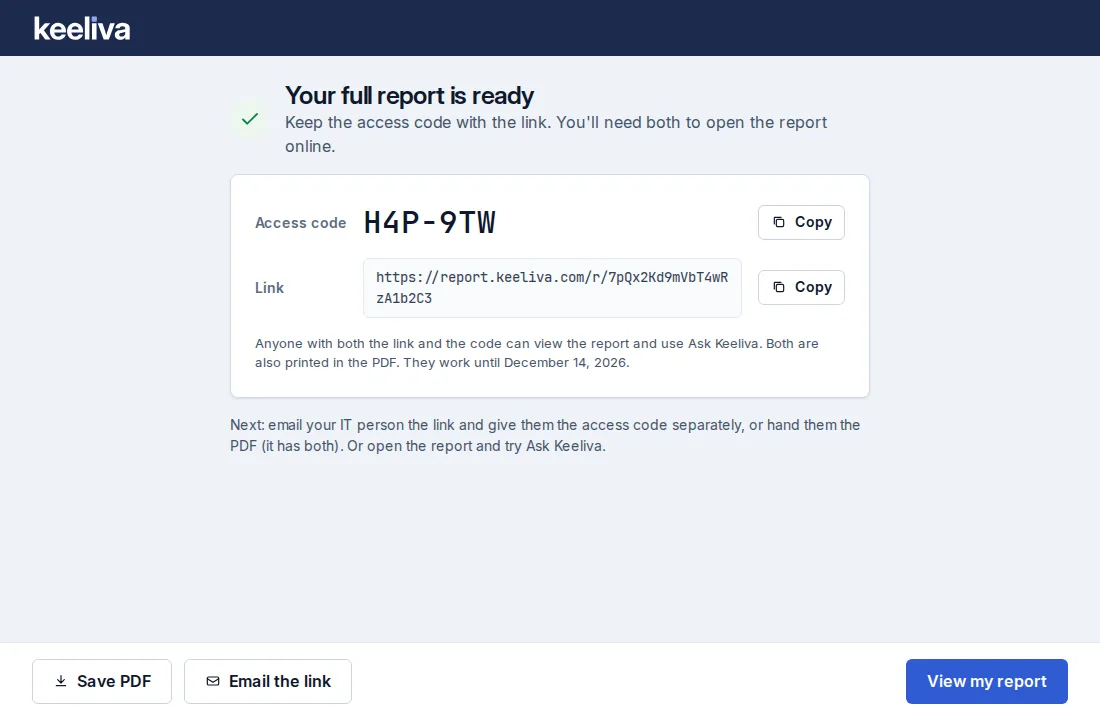
Your results are sent, software versions are checked, the optional check from the internet runs, and (if you chose AI) the wording is rewritten in plain language and Ask Keeliva, our AI assistant, is ready on your report page. You get a private link, a six-character access code and a PDF.
The report
What the report contains
- Two sections, two grades. “Inside your network” is what someone already on your network could see. “Visible from the internet” is what anyone outside could see, if you chose that check.
- A few fixed categories that apply to any network: network exposure, device hygiene, network segmentation, Wi-Fi security, unknown devices; and from the internet: services reachable from outside, email spoofing protection, website certificate.
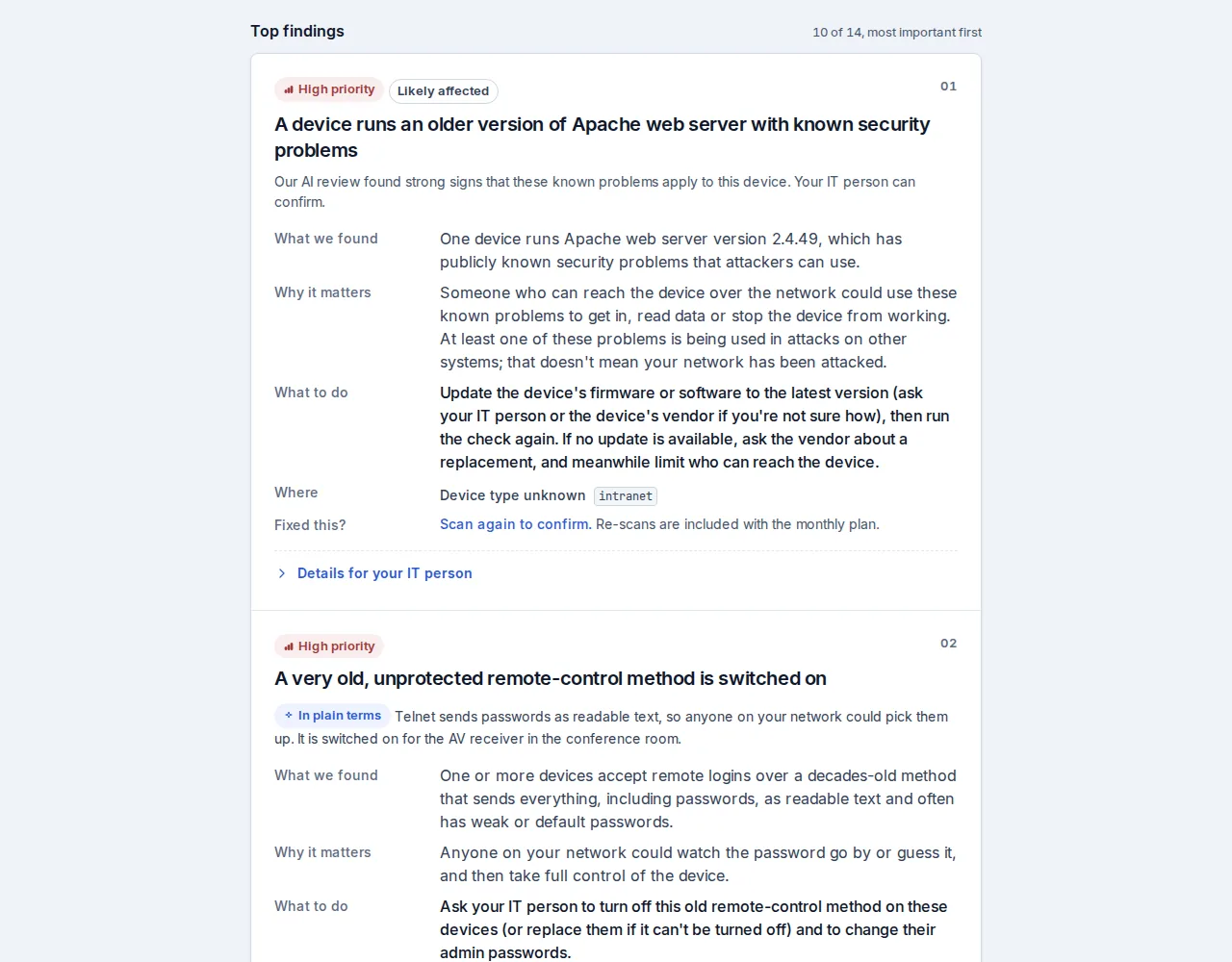
- Top findings, most important first, each with what we found, why it matters, what to do, and a “details for your IT person” section with the technical specifics.
- Honest notes. When something couldn't be verified, or needs your IT person to confirm, it says so in a separate note that never looks like a finding and never looks like a pass.
- What the scan did and didn't do, written out, so whoever reads the PDF knows exactly what it covers.
See a complete sample report for an invented small business, or download the sample PDF (230 KB).
How the grade is set
The grade follows the most serious finding. Smaller findings only move it within that band, so one serious problem is never averaged away by a lot of clean results.
| Grade | What it means |
|---|---|
| Strong | Nothing found, or only low-priority items. |
| Good | Medium-priority items, but nothing high-priority. |
| Needs Attention | One high-priority problem to fix soon. |
| Serious Issues | Two high-priority problems. |
| Urgent | Three or more high-priority problems. |
Priorities come from fixed rules (for known software problems: the public severity rating and whether attackers are using the problem against other systems). When you choose AI, it can rewrite the wording and question a software match it has reason to doubt, but it can never add a finding, raise or lower a priority, or change the grade.
For IT professionals
Technical details
What Keeliva actually does, for the IT person or service provider who wants to look under the hood before running it or recommending it.
| Limit | Scan inside the network (the app) | Check from the internet (optional, our server) |
|---|---|---|
| Method | TCP connect only | TCP connect only |
| Ports | 35 common ports | 32 commonly exposed ports |
| At a time | One connection per device; at most 16 devices in parallel | At most 2 connections |
| Spacing | At least 0.1 s between attempts to a device; at most 50 attempts per second overall | At least 0.5 s between connections |
| Cap | At most 2,048 addresses per scan | At most 64 connections per check |
The app has no setting that changes these limits, and the code enforces hard ceilings on them.
The app on the scanning computer
- No nmap, no Npcap, no drivers. The scan engine is pure Python using ordinary operating-system sockets: no raw sockets, no packet capture, no administrator rights, no Windows service, no agent left behind. Per-user install on 64-bit Windows 10 (version 1809 or later) or Windows 11. Code-signed as Jelista Strategies Inc.
- Scope. Every private IPv4 subnet this computer is directly connected to through a physical adapter. VPN, virtual, public-address and carrier-grade NAT adapters are skipped, as is any adapter whose type can't be determined. A subnet larger than /24 is limited to the /24 that contains this computer. The customer confirms the scope before the first packet, and every target is checked against the scope in code before any connection is made.
- Host discovery. One ICMP echo per address using Windows' own
ping.exe, then the ARP cache (arp -a) for MAC addresses, which also catches hosts that drop ping. - Names. One mDNS query per interface to 224.0.0.251:5353, one NetBIOS node-status request (UDP 137) per discovered host, and an SSDP M-SEARCH to 239.255.255.250:1900, sent twice on each interface with TTL 1.
- Service check. TCP connect only, never SYN or stealth scanning, to these ports on each host: 21, 22, 23, 25, 53, 80, 104, 110, 135, 139, 143, 443, 445, 515, 548, 554, 631, 1433, 1723, 1883, 2049, 3306, 3389, 5000, 5060, 5432, 5900, 8000, 8008, 8009, 8080, 8443, 9100, 11112, 62078.
- Banners and identification. A passive read of what each service volunteers (up to 1 KB). One
GET /on plain web ports, keeping only the status line, theServer,X-Powered-ByandContent-Typeheaders and the page title. One TLS handshake per device to read its certificate (443, or 8443 if 443 is closed). For printers only, an IPP Get-Printer-Attributes request (with one retry if the printer rejects the first). The UPnP description a device advertised, fetched only from that device's own address. Raw-print ports (9100–9109, 515, 9220, 35) are connected to and closed, and nothing is ever sent to them. - Security software on the scanning computer. Some antivirus suites answer for mail ports on every address. Keeliva also probes up to two unused addresses on the subnet, so services that answer everywhere are reported as interception, not as open ports.
- Local reads. The Windows build and update level from the registry (
HKLM\SOFTWARE\Microsoft\Windows NT\CurrentVersion), the Wi-Fi authentication and cipher fromnetsh wlan show interfaces(the network name is never sent), and the adapter table. - Device identity. Devices are keyed by MAC address, not IP, so a device seen at two addresses counts once (a device whose MAC address isn't visible is keyed by its IP). Vendors come from a bundled offline copy of the IEEE OUI registry; randomized (private) MAC addresses are labelled as such.
The optional check from the internet
- Target. Port checks run from our server, only against the public IPv4 address the customer's upload came from, and only after the customer confirms that address in the app. Never private, shared or reserved addresses, and never any other address. IPv6 is not checked.
- Ports. TCP connect to 21, 22, 23, 25, 53, 80, 81, 110, 135, 139, 143, 443, 445, 554, 1433, 1723, 1883, 2323, 3306, 3389, 5000, 5001, 5060, 5432, 5900, 6379, 8000, 8080, 8443, 8888, 27017, 37777. A passive banner read, plus one
HEAD /on plain web ports. - Domain (passive only). DNS lookups of the domain's A, MX, SPF and DMARC records and five common DKIM selectors. Two TLS handshakes to the website's address on port 443: one to read its certificate, one to see whether TLS 1.0 or 1.1 is still accepted. No other connection is made to the domain's addresses.
- Shodan InternetDB. A lookup of the public address, used as supporting information. Its vulnerability list is never turned into findings on its own.
How known vulnerabilities are matched
- Candidates, not verdicts. Product and version strings from banners and identification are mapped to CPE names and looked up in the NIST NVD CVE API 2.0 on our server (cached for 7 days; if NVD can't be reached, a cached result up to 30 days old is used). A match on port or service name alone is never reported. The free preview shows no CVE matches; matching runs when the full report is unlocked.
- Without AI. A CVE is reported only when the identification is confident (the product's own banner with a full version), there is no backport marker, the exact observed version is the one looked up, and an NVD configuration naming the component itself (not only its platform) contains that version, as an exact CPE version or a bounded range. Anything else becomes a visible note that a possible issue couldn't be verified.
- With AI. The AI reviews each candidate (up to 40 per product; the rest get a visible “not assessed” note) and answers keep, dismiss or uncertain, with a reason code. Dismissals are checked in code against the evidence in the report; one the evidence doesn't support becomes a visible note, never a silent drop. If the AI doubts a CVE that the strict rules proved, a CISA KEV CVE stays a finding and any other becomes an ungraded note naming the software and the reason. The AI can't add a CVE, set a severity or change the grade, and a CVE's age is never a reason to dismiss it.
- Distribution builds. When a banner shows a distribution or vendor patch marker (Ubuntu, Debian, Red Hat and similar), CVEs become an ungraded “please confirm” note, because those builds are patched without changing the version number. A CVE on CISA's Known Exploited Vulnerabilities (KEV) catalog stays a finding when the version check proves the version is in the affected range.
- Severity rules. High: listed in CISA KEV, CVSS 9.0 or higher, or CVSS 7.0 or higher on a service reachable from the internet. Medium: CVSS 4.0 or higher. Low: everything else. The CVSS score used is v4.0, then v3.1, v3.0 and v2, preferring NVD's own score.
- Exposure is separate from patching. An unnecessarily exposed administration or file-sharing service (Telnet, SMB, RDP, VNC, databases and so on) is a finding whatever its patch level.
What leaves the scanning computer
Nothing about the scan, unless the customer unlocks the full report. Before that, the app makes only data-free requests (the current price and a version check). On unlock, it uploads the report document it built (not the raw scan) over HTTPS to our server in Montreal, Canada. The app's internet traffic goes only to report.keeliva.com, and its own window is served on 127.0.0.1 only.
Before anything reaches our AI provider, MAC addresses are replaced with labels such as “Device 7”; device names and IP addresses are still sent, as the consent screen says. The CVE review itself carries no device identity, only software, versions and device types. The exact list of what is sent is on Security & privacy. Firewall and antivirus allow-list details are in the note for IT people.
What it doesn't do
No logins or credentials, no SNMP, no exploitation attempts, no UDP service scan beyond the name and discovery queries above, no full port range, no IPv6 scan, no agents, and no networks beyond the subnets the scanning computer is connected to. Keeliva is a quick, safe baseline for a small network. It is not a penetration test or an authenticated vulnerability scan.
See it for yourself
The scan is free, and the preview shows your grade before you decide anything.
Download the free scanFree scanFull report US$19.99Windows 10 or 11